If following these instructions doesn't work then your system may need special settings which you may find in our more detailed instructions, either the detailed GOG instructions. or the detailed CD-based instructions. Visiting the support page may also help.
Here's what you need to do.
- Download and install Glidos
- Configure Glidos
- Run Glidos and play Tombraider
- (Optional) Install high resolution textures, enhanced audio and enhanced movies
Download and install Glidos
Go to the download page and click the link to the latest Glidos_vXX.exe file, save it to disc and double-click it to start the install process. The installer will put a shortcut on your desktop, unless you tell it not to.Configure Glidos
To configure Glidos you just need to select the version of Tomb Raider you are using from the main Glidos dialog (what you see when you first start Glidos).
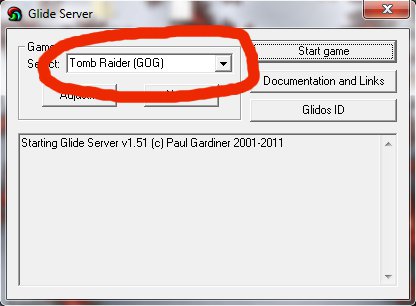
You'll see the choices "Tomb Raider (GOG)", "Tomb Raider (Steam)" and "Tomb Raider (Original)". The first two are obviously for the GOG and Steam versions of the game, and the last is for CD-based versions.
You'll also see "Tomb Raider (GOG with Archive)" and "Tomb Raider (Steam with Archive)". These work only if you also download and install the preconfigured Tomb Raider and Unfinished Business archive from here. By using this archive and the audio pack, you'll be able to hear all the original sounds from the PlayStation version of Tomb Raider. The audio pack can be used without this archive but some sounds will still be missing.
Run Glidos and play Tombraider
We're there! Just double-click the Glidos shortcut on your Desktop, select Tomb Raider and click the "Start game" button. You can use the "Adjust" button to select full-screen mode and change the resolution.Install high resolution textures, enhanced audio and enhanced movies
Glidos provides three enhencements to Tombraider. There's an audio pack that is useful in two ways. It provides the background music that is missing on some versions of the Tombraider CD, and it adds extra effect sounds at key points in the game to match the Playstation version. To use the audio pack, download it from here, install it and use Glidos's "Adjust" button to set the Redbook setting under "Audio & Movies" to "Use Audio pack".Similarly there is a FMV pack, which provide higher quality Movies. To use the FMV pack, download it from here, install it and use Glidos's "Adjust" button to select "Use FMV pack" under "Audio & Movies".
There are also texture packs available from the Tombraider Xtra site. These vastly improve the look of the game. There are various versions, created by different authors. To use a texture pack, just download it, install it and use Glidos's "Adjust" button to select it (Make sure you don't have "Use old-style texture pack" checked).